# Local development with schema migrations
Develop locally with the Supabase CLI and schema migrations.
Supabase is a flexible platform that lets you decide how you want to build your projects. You can use the Dashboard directly to get up and running quickly, or use a proper local setup. We suggest you work locally and deploy your changes to a linked project on the [Supabase Platform](https://app.supabase.io/).
Develop locally using the CLI to run a local Supabase stack. You can use the integrated Studio Dashboard to make changes, then capture your changes in schema migration files, which can be saved in version control.
Alternatively, if you're comfortable with migration files and SQL, you can write your own migrations and push them to the local database for testing before sharing your changes.
## Database migrations
Database changes are managed through "migrations." Database migrations are a common way of tracking changes to your database over time.
For this guide, we'll create a table called `employees` and see how we can make changes to it.
1. **Create your first migration file**
To get started, generate a [new migration](/docs/reference/cli/supabase-migration-new) to store the SQL needed to create our `employees` table
```bash name=Terminal
supabase migration new create_employees_table
```
1. **Add the SQL to your migration file**
This creates a new migration: supabase/migrations/\
_create_employees_table.sql.
To that file, add the SQL to create this `employees` table
```sql name=20250101000000_create_employees_table.sql
create table employees (
id bigint primary key generated always as identity,
name text,
email text,
created_at timestamptz default now()
);
```
1. **Apply your migration**
Now that you have a migration file, you can run this migration and create the `employees` table.
Use the `reset` command here to reset the database to the current migrations
```bash name=Terminal
supabase db reset
```
1. **Modify your employees table**
Now you can visit your new `employees` table in the Dashboard.
Next, modify your `employees` table by adding a column for department. Create a new migration file for that.
```bash name=Terminal
supabase migration new add_department_to_employees_table
```
1. **Add a new column to your table**
This creates a new migration file: supabase/migrations/\
_add_department_to_employees_table.sql.
To that file, add the SQL to create a new department column
```sql name=20250101000001_add_department_to_employees_table.sql
alter table if exists public.employees
add department text default 'Hooli';
```
### Add sample data
Now that you are managing your database with migrations scripts, it would be great have some seed data to use every time you reset the database.
For this, you can create a seed script in `supabase/seed.sql`.
1. **Populate your table**
Insert data into your `employees` table with your `supabase/seed.sql` file.
```sql name=supabase/seed.sql
insert into public.employees
(name)
values
('Erlich Bachman'),
('Richard Hendricks'),
('Monica Hall');
```
1. **Reset your database**
Reset your database (apply current migrations), and populate with seed data
```bash name=Terminal
supabase db reset
```
You should now see the `employees` table, along with your seed data in the Dashboard! All of your database changes are captured in code, and you can reset to a known state at any time, complete with seed data.
### Diffing changes
This workflow is great if you know SQL and are comfortable creating tables and columns. If not, you can still use the Dashboard to create tables and columns, and then use the CLI to diff your changes and create migrations.
Create a new table called `cities`, with columns `id`, `name` and `population`. To see the corresponding SQL for this, you can use the `supabase db diff --schema public` command. This will show you the SQL that will be run to create the table and columns. The output of `supabase db diff` will look something like this:
```
Diffing schemas: public
Finished supabase db diff on branch main.
create table "public"."cities" (
"id" bigint primary key generated always as identity,
"name" text,
"population" bigint
);
```
Alternately, you can view your table definitions directly from the Table Editor:
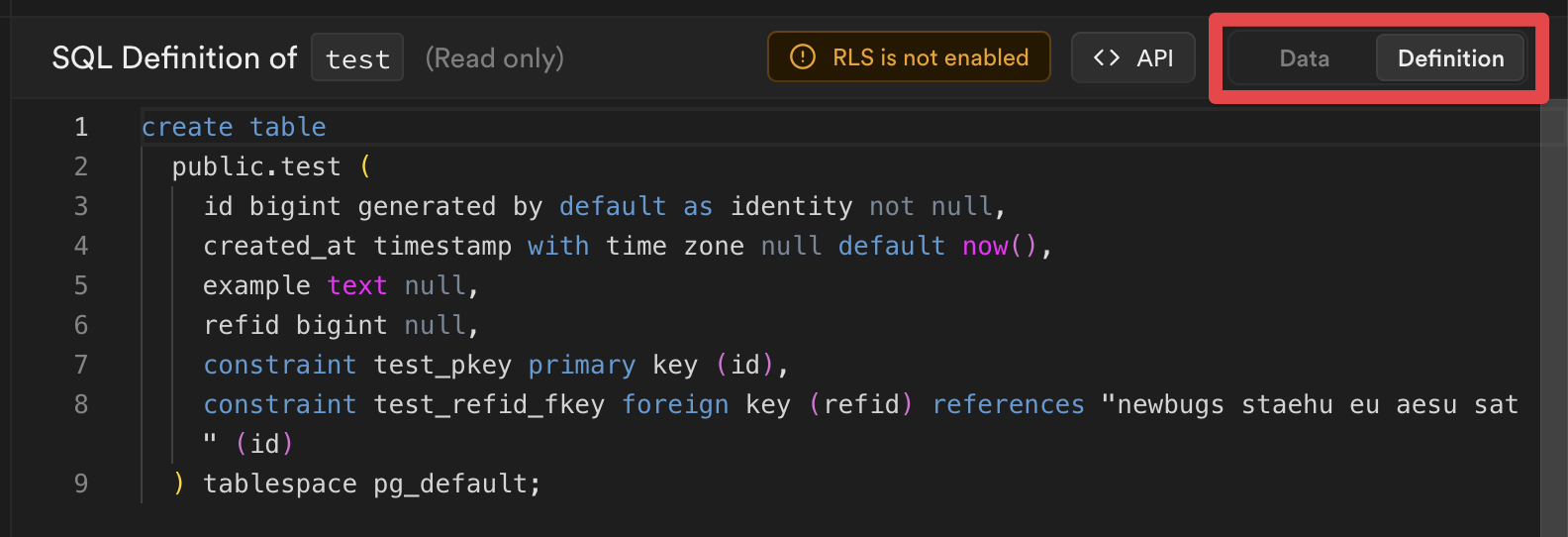
You can then copy this SQL into a new migration file, and run `supabase db reset` to apply the changes.
The last step is deploying these changes to a live Supabase project.
## Deploy your project
You've been developing your project locally, making changes to your tables via migrations. It's time to deploy your project to the Supabase Platform and start scaling up to millions of users! Head over to [Supabase](/dashboard) and create a new project to deploy to.
### Log in to the Supabase CLI
```bash name=Terminal
supabase login
```
```bash name=npx
npx supabase login
```
### Link your project
Associate your project with your remote project using [`supabase link`](/docs/reference/cli/usage#supabase-link).
```bash
supabase link --project-ref
# You can get from your project's dashboard URL: https://supabase.com/dashboard/project/
supabase db pull
# Capture any changes that you have made to your remote database before you went through the steps above
# If you have not made any changes to the remote database, skip this step
```
`supabase/migrations` is now populated with a migration in `_remote_schema.sql`.
This migration captures any changes required for your local database to match the schema of your remote Supabase project.
Review the generated migration file and once happy, apply the changes to your local instance:
```bash
# To apply the new migration to your local database:
supabase migration up
# To reset your local database completely:
supabase db reset
```
There are a few commands required to link your project. We are in the process of consolidating these commands into a single command. Bear with us!
### Deploy database changes
Deploy any local database migrations using [`db push`](/docs/reference/cli/usage#supabase-db-push):
```sh
supabase db push
```
Visiting your live project on [Supabase](/dashboard), you'll see a new `employees` table, complete with the `department` column you added in the second migration above.
### Deploy Edge Functions
If your project uses Edge Functions, you can deploy these using [`functions deploy`](/docs/reference/cli/usage#supabase-functions-deploy):
```sh
supabase functions deploy
```
### Use Auth locally
To use Auth locally, update your project's `supabase/config.toml` file that gets created after running `supabase init`. Add any providers you want, and set enabled to `true`.
```bash supabase/config.toml
[auth.external.github]
enabled = true
client_id = "env(SUPABASE_AUTH_GITHUB_CLIENT_ID)"
secret = "env(SUPABASE_AUTH_GITHUB_SECRET)"
redirect_uri = "http://localhost:54321/auth/v1/callback"
```
As a best practice, any secret values should be loaded from environment variables. You can add them to `.env` file in your project's root directory for the CLI to automatically substitute them.
```bash .env
SUPABASE_AUTH_GITHUB_CLIENT_ID="redacted"
SUPABASE_AUTH_GITHUB_SECRET="redacted"
```
For these changes to take effect, you need to run `supabase stop` and `supabase start` again.
If you have additional triggers or RLS policies defined on your `auth` schema, you can pull them as a migration file locally.
```bash
supabase db pull --schema auth
```
### Sync storage buckets
Your RLS policies on storage buckets can be pulled locally by specifying `storage` schema. For example,
```bash
supabase db pull --schema storage
```
The buckets and objects themselves are rows in the storage tables so they won't appear in your schema. You can instead define them via `supabase/config.toml` file. For example,
```bash supabase/config.toml
[storage.buckets.images]
public = false
file_size_limit = "50MiB"
allowed_mime_types = ["image/png", "image/jpeg"]
objects_path = "./images"
```
This will upload files from `supabase/images` directory to a bucket named `images` in your project with one command.
```bash
supabase seed buckets
```
### Sync any schema with `--schema`
You can synchronize your database with a specific schema using the `--schema` option as follows:
```bash
supabase db pull --schema
```
Using `--schema`
If the local `supabase/migrations` directory is empty, the `db pull` command will ignore the `--schema` parameter.
To fix this, you can pull twice:
```bash
supabase db pull
supabase db pull --schema
```
## Limitations and considerations
The local development environment is not as feature-complete as the Supabase Platform. Here are some of the differences:
- You cannot update your project settings in the Dashboard. This must be done using the local config file.
- The CLI version determines the local version of Studio used, so make sure you keep your local [Supabase CLI up to date](https://github.com/supabase/cli#getting-started). We're constantly adding new features and bug fixes.