Set up Pipelines
Configure publications, destinations, and Supabase Pipelines.
Public Alpha
Supabase Pipelines is currently in public alpha. Features and behavior may change as we continue developing the product.
Supabase Pipelines replicates Postgres data to a destination you configure in the Dashboard. Supabase runs the pipeline using the open-source Supabase ETL.
Initial sync copies existing rows from selected tables. Ongoing replication uses change data capture (CDC) to apply subsequent inserts, updates, deletes, and truncates.
Create a pipeline, then refer to settings, management, or advanced publication options as needed.
Before you start#
Check the plan and access requirements and check supported destinations.
Region#
Managed Pipelines run in AWS eu-central-1 (Frankfurt), independently of your source and destination regions. This region is fixed. Choose nearby destination resources to reduce latency and replication lag.
Pricing#
Pipelines charges for configured pipeline hours, initial sync data, and ongoing replication data. Destination-provider charges are separate. See rates, estimates, and billing examples.
Setup overview#
Prepare your destination, then enable and configure Pipelines in the Dashboard. A Postgres publication selects the data to replicate; you can create one during setup.
Step 1: Prepare your destination #
Follow your destination guide to prepare its resources and credentials, and check its source table requirements:
Step 2: Enable Pipelines#
Pipelines installs an etl schema and a database event trigger to track replication and schema changes. If your application already has an etl schema, rename it before enabling Pipelines. See what Pipelines installs and how to remove it.
- Navigate to the Database > Pipelines section of the Dashboard
- Click Add pipeline to show the replication side panel
- Select a destination available to your organization
- If Pipelines is not yet enabled, click Enable Pipelines, review the dialog, and confirm Enable Pipelines.
Step 3: Configure a destination#
- Enter a Name and select a Publication. Use an existing publication, or click New publication, name it, and select at least one table. For schema-wide replication or advanced options, create the publication with SQL.
- Under Initial sync, keep All tables to copy existing rows, or choose which tables to copy if you only need future changes for some tables.
- Enter the credentials and destination-specific settings prepared in Step 1.
- Optionally expand Advanced settings to change batching, initial sync concurrency, or slot recovery.
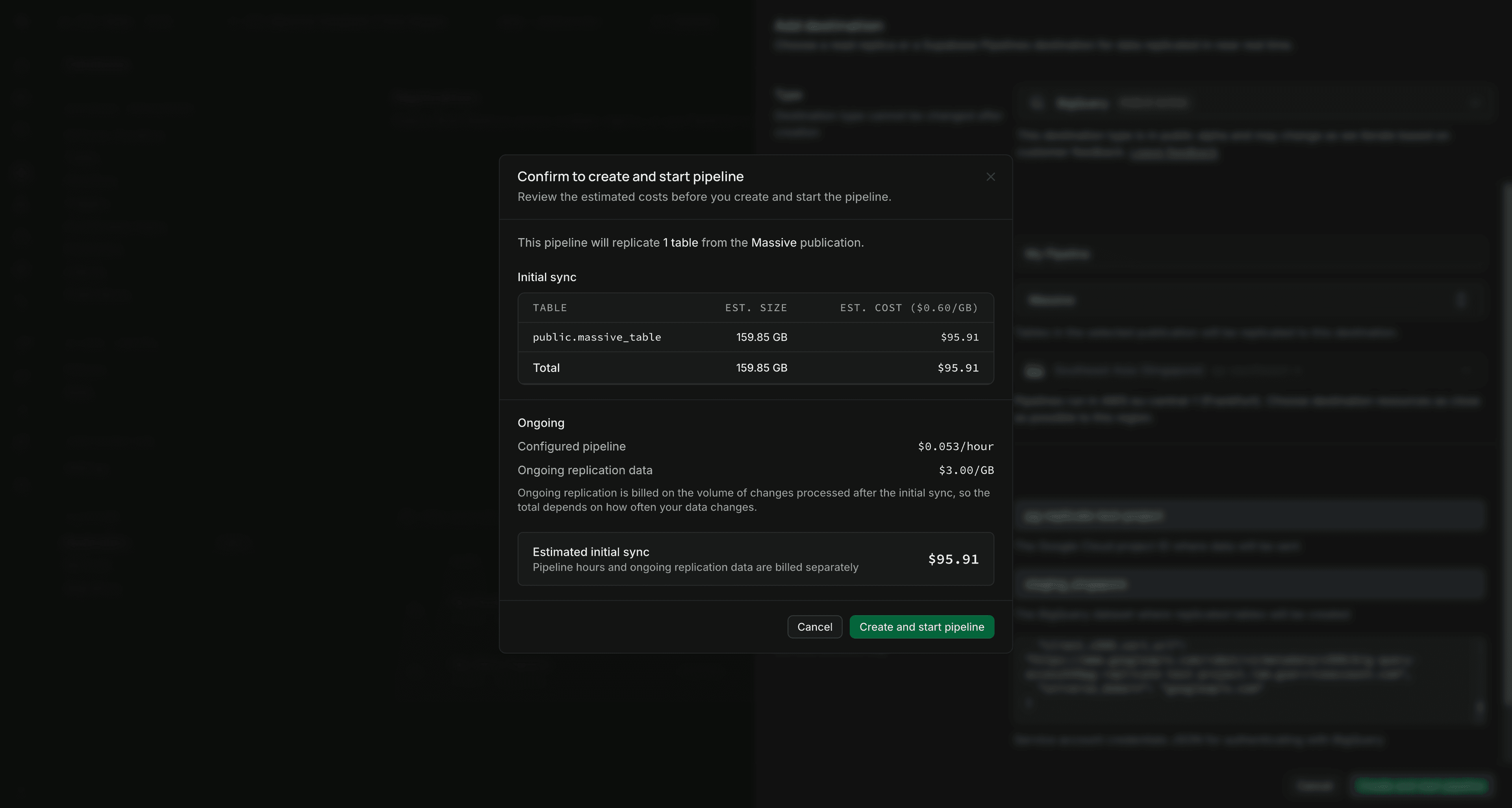
- Click Create and start pipeline. Fix any Required issues. For Warnings, review the risk, click Create and start pipeline anyway, and confirm that you want to continue.
- Review the estimated initial sync cost and ongoing charges, then confirm creation.
The pipeline copies the selected tables' existing rows and begins ongoing replication for every published table.
Step 4: Monitor your pipeline#
Open the pipeline and check that tables progress to Live and replication lag catches up. See pipeline states, metrics, and logs to assess progress and diagnose problems.
Pipeline settings#
Review initial sync choices and creation checks before tuning advanced settings.
Choosing which tables to copy#
Initial sync controls which publication tables copy their existing rows. Ongoing replication includes new changes from every published table.
| Selection | Existing rows copied |
|---|---|
| All tables | Every published table; the default |
| All except selected tables | Every published table except those you exclude |
| Selected tables only | Only the tables you include |
| No tables | None; replicate new changes only |
Selection changes affect unfinished initial syncs. To copy a completed table again, include it here, apply the settings, and restart its replication.
Skipping initial sync does not preserve or attach to previously loaded destination data. A table restart erases destination data even when initial sync is skipped.
Creation checks#
The Dashboard checks source access, logical replication settings and capacity, the publication, destination connectivity, and destination table requirements. Publications must contain at least one table and exclude the internal etl schema. FOR ALL TABLES is rejected.
A warning can recommend increasing max_slot_wal_keep_size so Postgres retains changes during initial sync. Higher retention uses more source storage; check available disk before applying the recommendation. See WAL configuration and monitoring.
Advanced settings#
Leave these settings at their defaults unless you need to tune latency, initial sync speed, or recovery behavior.
| Setting | Behavior |
|---|---|
| Batch wait time | Default: 10000 milliseconds. Maximum wait after the first buffered row or change before flushing a partial batch. Size and memory limits can flush earlier. Accepts whole milliseconds from 0. |
| Table sync workers | Default: 4. Maximum tables copied concurrently. Each active worker uses an additional replication slot. Accepts whole numbers greater than 0. |
| Initial sync connections per table | Default: 4. Maximum source connections copying one table. Total connection use increases with both concurrency settings. Accepts whole numbers greater than 0. |
| Invalidated slot behavior | Default: Block startup, which requires manual recovery. Recreate slot rebuilds an invalid main slot and restarts replication for all tables from scratch on the next start. |
Lower batch wait times reduce batching delay; higher values can improve write efficiency. For concurrency tradeoffs, see Initial sync and table-sync slots.
Recreate slot replaces every destination table, including tables excluded from initial sync. Review lost-slot recovery before enabling it.
Managing your pipeline#
Use the three-dot actions menu on a pipeline row:
- Start pipeline: Begin replication for a stopped pipeline
- Update available: Review and apply the latest managed pipeline version when an update is available
- Stop pipeline: Finish in-flight work and stop. Shutdown can take several minutes. WAL accumulates and pipeline-hour billing continues while stopped.
- Restart pipeline: Restart with the saved settings and replication progress. Required after adding or removing publication tables. Review the recovery behavior below before restarting during initial sync.
- Edit pipeline: Modify settings like credentials, initial sync selection, or advanced options. Click Apply and restart pipeline for an active pipeline or Apply and start pipeline for a stopped pipeline.
- Delete pipeline: Delete the pipeline and stop replication. Already replicated data remains at the destination.
Viewing publications in the Dashboard#
View publications and their tables in Database > Publications.
Adding or removing tables#
FOR TABLES IN SCHEMA includes new tables automatically, but Pipelines discovers them only after a pipeline restart. To exclude an implicitly included table, change the publication scope or use an explicit table list; ALTER PUBLICATION ... DROP TABLE cannot exclude it.
These examples use the pub_users_orders publication from the SQL example. Replace it and the table names with your own; tables must already exist.
Adding tables to replication#
-
Add existing source tables to your explicit table-list publication using SQL:
alter publication pub_users_ordersadd table products, categories; -
Review the initial sync selection for the added tables, then select Restart pipeline from the pipeline's actions menu.
Removing tables from replication#
-
Remove the table from your Postgres publication using SQL:
alter publication pub_users_ordersdrop table orders, products; -
Select Restart pipeline from the pipeline's actions menu.
After the restart, Pipelines removes its replication state for those tables. Source tables and destination tables, including data already replicated, remain unchanged. Other pipelines using publications that still include the tables are unaffected. If multiple pipelines use the changed publication, restart each one.
You can delete the destination tables yourself after the restart. Don't modify or delete tables still managed by Pipelines; doing so can stop replication and require a table restart.
Pipeline restarts and recovery#
A pipeline restart does not request a fresh copy of every table. Tables that completed initial sync resume from saved progress. An interrupted initial sync can start again from scratch: Pipelines deletes the partial destination data and copies the table again according to the Initial sync selection. This can also happen to an unfinished table when another table's restart temporarily stops the pipeline.
If the main replication slot is lost and Recreate slot is enabled, startup rebuilds all replicated tables. Review lost-slot recovery for its data-loss and billing effects. To deliberately rebuild specific tables, use Restarting tables.
Disabling Pipelines#
Delete all pipelines first. Then open the three-dot actions menu on the Pipelines page and click Disable Pipelines.
For cleanup details, see What happens when you disable Pipelines?.
Creating a publication with SQL#
The following SQL examples assume you have users and orders tables with the referenced columns in your database. Schema-wide publications, column lists, and row filters require Postgres 15 or later. Choose one publication scope; the examples are alternatives.
Publication for specific tables#
create publication pub_users_ordersfor table users, orders;This publication includes inserts, updates, deletes, and truncates for users and orders.
Publication for all tables in a schema#
create publication pub_all_publicfor tables in schema public;This tracks changes for all existing and future tables in the public schema.
To include multiple application schemas, pass a comma-separated list. For example, if your tables are in public and analytics:
create publication pub_application_schemasfor tables in schema public, analytics;Both schemas must already exist. This includes their existing and future tables without including the internal etl schema. Restart the pipeline after adding new tables so it discovers them. See Postgres schema publications for syntax and requirements.
Publication for all tables#
Pipelines rejects FOR ALL TABLES because it includes the internal etl tables. Replicating them can interfere with replication state. Use FOR TABLES IN SCHEMA for application schemas or list tables explicitly. Replace any existing FOR ALL TABLES publication; Postgres cannot narrow it in place.
Advanced publication options#
Use these options to control which data is published and how partitioned tables appear at the destination.
Selecting specific columns#
You can replicate only a subset of columns from a table:
create publication pub_users_subsetfor table users (id, email, created_at);For updates and deletes, the column list must include all replica-identity columns. With REPLICA IDENTITY FULL, that means all columns, so you cannot publish a subset. Also check your destination's source table requirements.
Filtering rows with a predicate#
You can filter which rows to replicate using a WHERE clause. These examples copy matching existing rows during initial sync and then replicate matching inserts only:
-- Only replicate active userscreate publication pub_active_usersfor table userswhere (status = 'active')with (publish = 'insert');-- Only replicate recent orderscreate publication pub_recent_ordersfor table orderswhere (created_at > '2024-01-01')with (publish = 'insert');To also publish updates and deletes, every column used in the row filter must be covered by the table's replica identity. For example, REPLICA IDENTITY FULL covers all columns, at the cost of more WAL. Review Postgres row-filter restrictions and your destination's source table requirements before enabling those operations.
Postgres evaluates the filter before sending changes. A row matches only when the expression is true; false and NULL do not match. For an update, it checks both the old and new row:
| Old row matches | New row matches | Change sent to Pipelines |
|---|---|---|
| Yes | Yes | Update |
| No | Yes | Insert |
| Yes | No | Delete |
| No | No | No change |
This applies when updates are published. Row filters do not limit TRUNCATE: a published truncate affects the whole destination table. See Other publication changes before changing a filter on an existing pipeline.
Partitioned tables#
publish_via_partition_root controls whether partition changes arrive as one parent table or separate leaf tables:
| Setting | Destination shape |
|---|---|
true | One table matching the published parent, including rows from its leaves |
false or unset in SQL | One table per replicated leaf |
| Publishing an individual leaf | One table for that leaf, regardless of this setting |
Schema-wide publications follow the same rule for partitioned tables; regular tables remain separate.
For example, if orders is partitioned by month:
-- Publish all partitions as the parent table.create publication pub_orders_rootfor table orderswith (publish_via_partition_root = true);-- Publish each leaf as a separate table.create publication pub_orders_leavesfor table orderswith (publish_via_partition_root = false);Publications created from the Dashboard replication flow default to publish_via_partition_root = true. Clear Publish partitions as the parent table to use false. If you create or alter a publication manually with SQL, set this option explicitly so the destination shape matches what you expect.
On Postgres 15 and later, row filters apply during both initial sync and ongoing replication:
- With
publish_via_partition_root = true, the published parent's filter and column list apply, even if a leaf has its own filter or column list. - With
false, each leaf's filter and column list apply. Define row filters on the leaves; Postgres rejects them on the partitioned parent in this mode.
See Postgres partition row filters for examples.
The publication setting controls which Postgres relation becomes a destination table. It does not copy the source table's physical partitioning configuration, partition key, or partition bounds to the destination.
Choose the mode before starting replication:
- With
true, new changes in a newly created or attached partition flow through the already tracked parent without a restart. Attaching a partition does not copy rows that were already in it. - With
false, a new leaf partition has its own table identity. Restart the pipeline to discover it; its existing rows are copied only if it is selected for initial sync.
To change modes, stop the pipeline, change the option, review Initial sync for the new table identities, then restart. Pipelines removes state for untracked tables and discovers new ones, copying existing rows only if selected for initial sync. Old destination tables remain; their data is not merged or split automatically.
With publish_via_partition_root = true, truncating a leaf partition keeps destination rows; truncating the published parent clears them.
A table restart discards retained rows. It copies current source data again only if the table is selected for initial sync.
Other publication changes#
Publication changes do not all require a pipeline restart:
| Change | When it takes effect |
|---|---|
| Add or remove published columns on an already tracked table | Applied while the pipeline runs, subject to the destination's schema-change restrictions. |
| Change a row filter | Postgres applies the new filter to ongoing changes without a pipeline restart. |
Change published operations (insert, update, delete, truncate) | Postgres changes which operations it sends without a pipeline restart. Previously omitted operations are not replayed. |
Change publish_via_partition_root | Stop the pipeline before changing this option, then restart it to discover the new table identities. See Partitioned tables. |
Changing a row filter affects future changes only: it neither copies newly included historical rows nor removes rows that no longer match. A pipeline restart does not rebuild history. To rebuild it, include affected tables in initial sync and restart their replication.
Wait for initial sync to finish before changing its filter; changing a filter does not update a copy already in progress.
ALTER PUBLICATION ... SET TABLE replaces the table list. When changing column lists or filters, include every table you want to keep; omitted tables are removed.
Schema change support#
Pipelines applies supported changes to replicated columns as replication progresses. It does not mirror every Postgres DDL operation. Check the supported changes and destination behavior for BigQuery, ClickHouse, DuckLake, or Snowflake before altering replicated tables.
Unsupported changes have different outcomes:
- Data type changes are skipped with a warning in every destination, including changes to precision or scale. The destination keeps its existing type. Compatible values may continue to replicate, but later writes or schema changes can fail.
- Unsupported defaults and tightening
NOT NULLare skipped with a warning. Replication can continue with a different default or a more permissive destination column. Each destination guide describes these differences; skipping a default does not skip the values Postgres supplies in row changes. - Incompatible schema changes are rejected with an error, such as changing the primary-key definition used by BigQuery or ClickHouse's
ReplacingMergeTree. Failed or interrupted schema changes can require manual recovery.
Check replication logs for warnings and errors after changing a replicated table.
After a type change, or when a schema error cannot resume safely, resolve any source incompatibility and restart replication for the affected tables. This rebuilds their destination schema and deletes their existing destination data. Select the tables for Initial sync to copy their current source rows again. Restarting the pipeline alone does not rebuild tables. Do not repair managed destination objects manually.
Limitations#
Pipelines has the following limitations:
- Source tables: Primary-key, replica-identity, and publication-column requirements depend on the destination. See its destination guide before creating the pipeline.
- Transformations: Pipelines maps names and types for the destination but does not run user-defined transformations.
- Custom data types: Custom values replicate as strings. Check that your destination can interpret those string values correctly.
- Arrays: Only one-dimensional arrays are supported. Non-default lower bounds are not preserved. Check the destination guide for additional array restrictions.
- Generated columns: Generated columns are skipped. Use triggers to store derived values in regular columns if you need them in the destination.
Destination-specific limitations, such as row size and type mappings, are documented in each destination guide.